
Welcome to Checkr!
This guide will walk you through the Checkr / WorkLLama integration process, and outline how to use the Checkr dashboard for the background check process.
The Checkr Help Center is a great resource for any questions that may not be covered in this user guide. If you have any questions not covered in this guide that are specific to WorkLLama, please fill out a support request for additional assistance.
_________________________________________________________
- Prerequisites
- Add Checkr to WorkLLama
- Create a Checkr account
- Account Hierarchy
- Order Background Checks
- International Packages
- Domestic Package with International Verifications
- Monitoring Background Checks
- Checkr Features
- Use the Checkr Dashboard
- Checkr’s Candidate Experience
- Resources
_________________________________________________________
This guide describes how to set up Checkr to use within WorkLLama, such that WorkLLama users can initiate and view Checkr background checks from within the WorkLLama interface.
Prerequisites
The following items are required to initiate WorkLLama / Checkr integration. Please ensure you have the following before proceeding.
- Access to WorkLLama Admin Portal with Admin Rights
- Admin privileges to your Checkr account or Business contact and payment information if you are setting up a new account
Connecting your Checkr account with WorkLlama
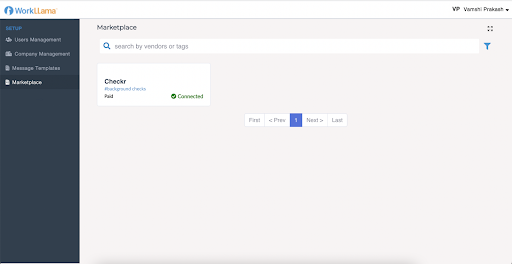
- Log into WorkLLama Admin Portal and navigate to the ‘Marketplace’ link in the side navigation bar.
- Search for Checkr or locate the Checkr card, and click ‘Connect’.
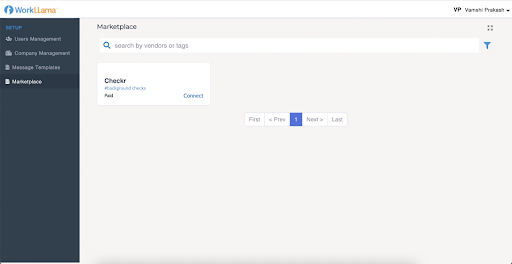
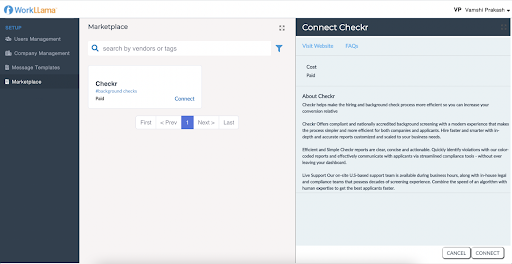
- In the right sidebar, click ‘Connect’.
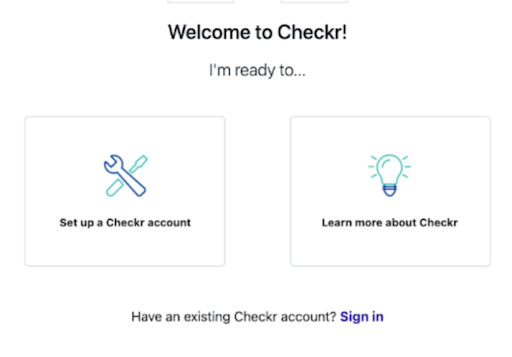
- In the ‘Welcome to Checkr’ screen, if you are connecting to a current Checkr account, select ‘Sign In’ and follow the instructions. If you are new to Checkr, follow the instructions to create a new account.
- If your Checkr account was created recently, Checkr will validate credentials to establish your account as ‘Authorized’ to run background checks. If your account isn’t Authorized yet, your connection status will be ‘Awaiting Authorization’.
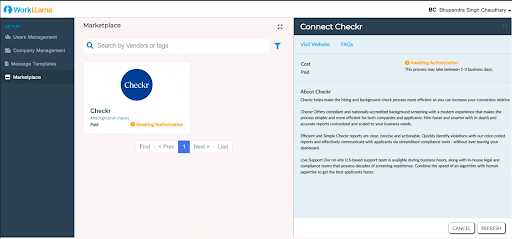
- Checkr will notify you when your account is authorized (may take up to 3 business days). Click ‘Refresh’ to refresh your connection when you are notified.
- If your account was authorized, your connection is successfully established as indicated by the status ‘Connected’. The different background packages available in your Checkr account will be listed here.
Create a Checkr account
If your company does not yet have a Checkr account, one must be created before integration with WorkLLama.
To create an account for use with WorkLLama:
- Click Sign Up when prompted.
- Enter your name and company contact information, and click Continue.
- Enter payment information. Invoices for background checks will come directly from Checkr, and not from WorkLLama. (Payment information may be edited on the Checkr dashboard after the account has been created.)
-
Provide the requested credentialing information. This information is required by law to ensure that only legitimate companies, with legitimate business needs, can run background checks.
- Note: Select Purpose: Pre-employment to use Checkr to run background checks for hiring/employment purposes.
- Click Continue to submit your information to Checkr for review. Once the credentialing process is complete, Checkr will notify both WorkLLama and you, and you may begin ordering background checks through the WorkLLama platform.
- Credentialing typically takes 1-2 business days. If Checkr needs additional information, they will reach out to you directly by email.
Account Hierarchy
The integration allows users to set up different "nodes" inside of their Checkr account to have displayed in the background check ordering workflow. Nodes can be used to designate different locations, teams, or groups that order background checks within your organization. Checkr requires you to assign packages to nodes once they are created, and will then display which node ordered which package on your Checkr invoice.
Each time you order a background check, you will be asked which node to order the check from, and then select from a pre-populated list of packages available to that node. Invoices will show the background checks ordered by each node within 2 billing cycles after setup.
To order a background check with Account Hierarchy and nodes:
- Fill in the work location of the candidate as you normally would for any background check.
- Select which Hierarchy node you would like to order from.
The list of available Packages will automatically generate based on the node you select. Select the background check package you want to run. If you do not see any packages populating, you will need to assign the appropriate packages to that node in your Checkr dashboard before proceeding.
For more information on Account Hierarchy, nodes, and how to configure your account, see Checkr's Payment & Billing, Adverse Actions, and Manage Account Settings Help Articles.
Order Background Checks
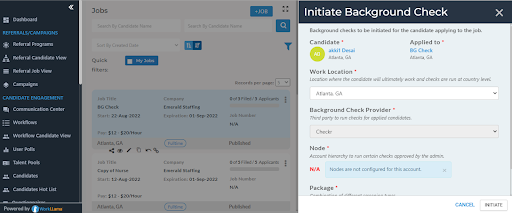
- When you are ready to order a background check for an applicant for a job, click on the ‘More Options’ button on the application card.
- The application card will display the different actions available.
- Click the ‘Background Check’ option to order a new background check.
- Complete the form as prompted.
Ordering Notes:
- The Background Check option is only available if the ‘Requires Background Check’ option is selected for the job
- You can’t trigger a background check for a candidate if there is not a job application associated.
- The Location is automatically prefilled from the location of the job
- If your organization has Nodes / Hierarchy setup in Checkr, they will be available here for you to select. This option is disabled if No Nodes are defined
- If Nodes / Hierarchy is defined, only associated packages are displayed.
International Packages
Checkr defines international background checks as background checks run on candidate’s living and working outside of the United States.
Checkr currently offers the following international screenings for candidate’s with work locations outside the United States:
- International Criminal
- Adverse Media Search - may be enabled to automatically run if criminal not available
- Identity Document Verification
- Global Watchlist
- Education Verification
- Employment Verification
Domestic Package with International Verifications
If your candidate works in the United States but has out-of-country history, for example attended school internationally, request a package that includes an education verification with out-of-country history enabled. Checkr currently offers an out-of-country history setting that can be added to any domestic criminal search or verification.
The option can be applied for candidates who will perform their work inside the US, but who have an address history outside the US. Screening types that can be run on domestic screenings with out-of-country history include:
- Education Verification
- Employment Verification
Monitoring Background Checks
- Once a background is ordered successfully, switching to the ‘BG Check’ tab shows the status of the background check.
- When the candidate / applicant has submitted the required information to generate a report, a link to the Background Check report in Checkr is available, as well as the report status and the report complete ETA. Note that a login to your Checkr portal is required to view the report.
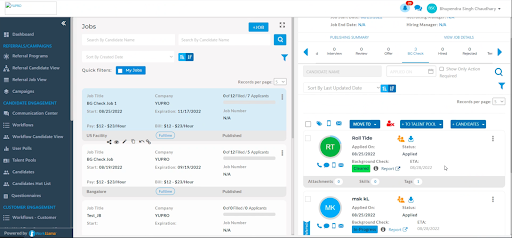
Once Complete, click on it to open the report in the Checkr Dashboard and review the details. (For more information on reports and report statuses, see How do I interpret a background report in the Checkr Help Center.)
Most background checks will be completed within 24 hours, but the time to complete can range from a few minutes to a few weeks, depending on the type of check ordered, the geographic location of the candidate, and/or county courthouse operations.
Checkr Features
Use the Checkr Dashboard
While the integration allows users to order background checks and view their status, the following features are available only within Checkr:
- Background check invitation links
- Full background check report results
- Adverse Action initiation and processing tools
- Checkr settings
For a quick overview of the Checkr Dashboard, please see Getting started with Checkr
Checkr’s Candidate Experience
The checkr candidate experience overview describes the Checkr candidate experience of the background check process. It includes information about the Checkr Candidate Portal and Help Center where candidates can self-serve and address common issues that can stall or delay their background checks. The overview also includes common reasons candidates contact Checkr and how to address these issues.
The overview includes:
- An overview of the candidate process
- General information about the background check process, including exceptions and disputes
- An overview of the Checkr Candidate Portal
- An introduction to the Candidate Experience team
- A list of some of the most common candidate questions
- Links to the most frequently used pages in the Checkr Help Center
Resources
For a quick overview of the Checkr Dashboard, please see Getting started with Checkr.